
Upgrading Your Subscription
Upgrading Your Subscription
- Navigate to the Subscription page
- Click Upgrade under the plan you wish to upgrade to
- Complete your purchase on the Stripe checkout screen
If you have credits remaining from your previous plan, they stack with your new plan’s credits. Existing credits keep their original expiration date — the end of the billing period in which they were granted.
Downgrading Your Subscription
Downgrading Your Subscription
- Navigate to the Subscription page
- Click Downgrade under the plan you wish to switch to
- Confirm the change
Switching Between Monthly and Annual Billing
Switching Between Monthly and Annual Billing
You can switch your billing cadence from the Subscription page.
- Monthly → Annual: Takes effect immediately. Your billing cycle resets to the switch date.
- Annual → Monthly: Takes effect at the end of your current annual billing period.
Need to switch from annual to monthly immediately? Reach out to team@julius.ai and we’ll process it for you.
Canceling Your Subscription
Canceling Your Subscription
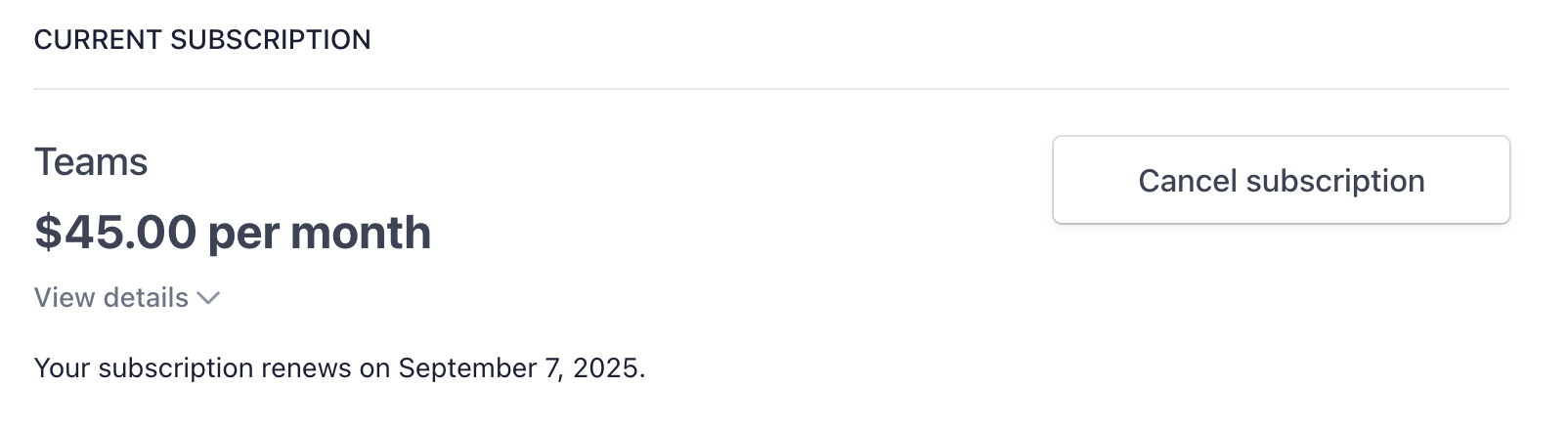
- Navigate to the Subscription page
- Click Invoices and Payment Methods to open your billing portal
- Click Cancel plan
-
If eligible, you can select End subscription immediately and receive a refund
For information on refunds, see our Refund Policy.
Canceling a Team Workspace
Canceling a Team Workspace
If you have a Business or Enterprise plan with a team workspace and want to remove it:
- Navigate to the Subscription page
-
Navigate to the Teams tab

-
Scroll down to the Delete Team section

Managing Payment Methods and Billing Information
Managing Payment Methods and Billing Information
- Navigate to the Subscription page
- Click Invoices & Payment Methods
-
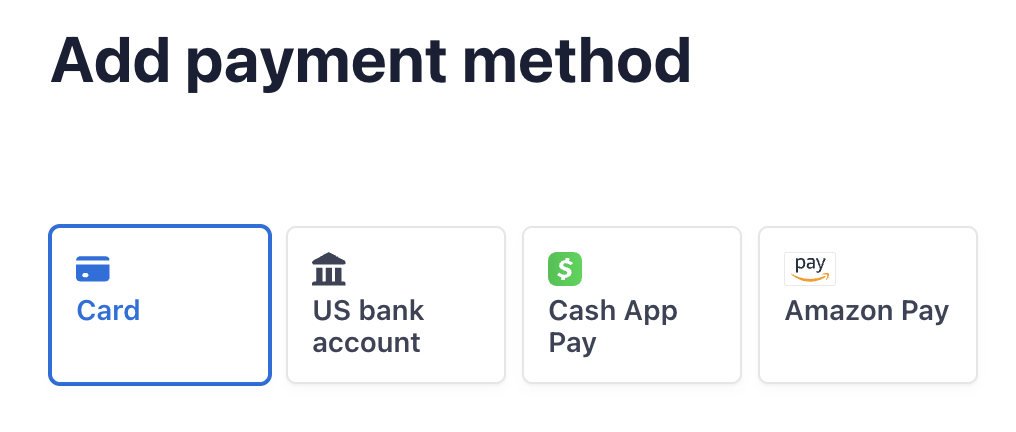
Click Add payment method to change your current payment method


-
Click Update information to update your billing information (e.g. name, address, company, VAT info)

Subscription Renewals
Subscription Renewals
Your subscription will auto-renew monthly or annually, depending on the type of subscription you’ve purchased.Canceling the subscription yourself will keep the subscription active until the end of your billing period.
Reach out to team@julius.ai for support or to ask questions not answered in our documentation.